Storefront Themes
Vectis Commerce includes a two-tier theming system that lets merchants customize the storefront appearance without code changes.
Theming Tiers
Tier 1: CSS Variable Hot-Swap
Design tokens (colors, fonts, border radius) are stored as CSS custom properties and configurable per channel from the admin. Changes take effect immediately — no rebuild or deploy required.
Tier 2: Layout Variants
The storefront ships with multiple built-in component variants for the header, footer, and product cards. Merchants select which variant to use from the theme editor. Adding new variants requires a deploy; switching between existing variants is instant.
Managing Themes
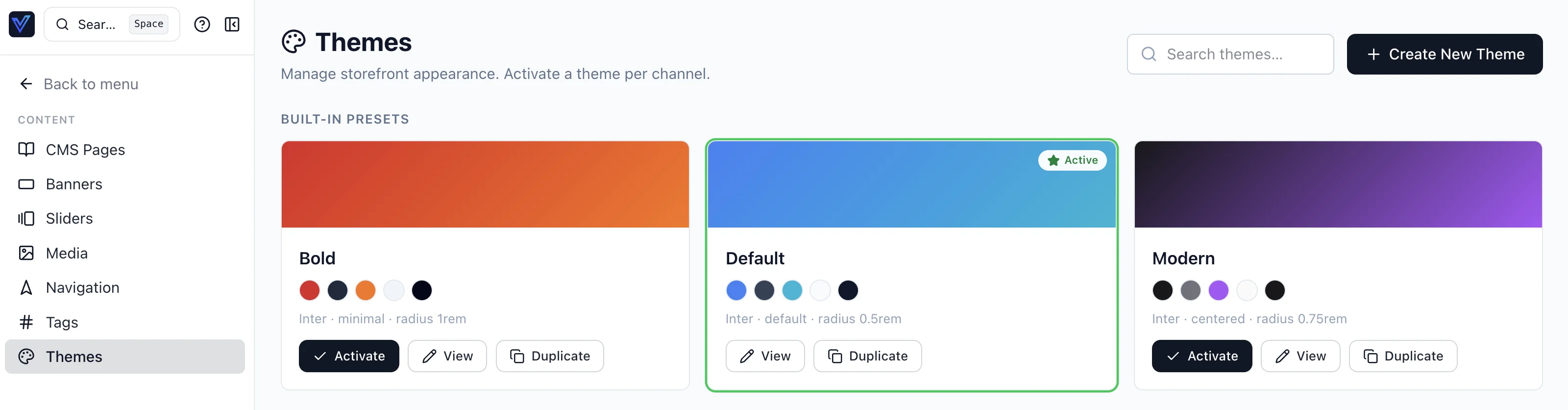
Navigate to Settings → Themes in the admin dashboard.
Built-in Presets
Three presets ship with every Vectis Commerce installation:
| Preset | Description |
|---|---|
| Default | Professional blue palette matching the Vectis brand. Standard header and footer. |
| Modern | Neutral/minimal design with purple accents. Centered header, expanded footer. |
| Bold | High-contrast design with red primary. Minimal header, compact footer, large radius. |
Built-in presets cannot be deleted but can be fully customized.
Activating a Theme
Click Activate on any theme card. Only one theme can be active per channel. The storefront updates on the next page load (theme settings are cached in Valkey (Redis-compatible) with a 5-minute TTL).
Customizing a Theme
Click Customize to open the theme editor. Available settings:
- Colors: Primary, secondary, accent, surface, text, and state colors (success, warning, danger). Use the color picker or type hex values.
- Font Family: Choose from a curated list of web fonts (Inter, DM Sans, Poppins, etc.).
- Border Radius: Global radius for buttons, cards, and inputs.
- Header Variant: Default, Centered, or Minimal layout.
- Footer Variant: Default, Compact, or Expanded layout.
- Logo URL: Custom logo image (upload to Media Library first).
- Custom CSS URL: Tier 1 CSS file that overrides design tokens (upload to Media Library first).
Custom CSS Themes
For advanced customization beyond what the editor provides:
- Create a CSS file that overrides the design token variables and/or adds component styles.
- Upload the file to the Media Library (CMS → Media).
- Copy the file URL.
- Paste the URL into the Custom CSS URL field in the theme editor.
The CSS file is loaded as an additional stylesheet after the base styles, so it can override any token or component rule.
Per-Channel Theming
If your store has multiple channels (e.g., wholesale vs. retail), each channel has its own active theme. Switch between channels using the channel filter on the themes page.
Performance
The theming system adds zero JavaScript runtime cost:
| Layer | Cost |
|---|---|
| CSS custom properties | Zero JS — browser resolves during CSS parse |
| Theme settings load | Sub-ms Valkey GET per request |
| Custom CSS file | One cached HTTP request |
| Layout variant selection | Zero — build-time compiled, server selects at render |
Technical Details
- Theme settings are stored in the
theme_settingsdatabase table. - Active theme for a channel is cached in Valkey with key
theme:{channel_id}and 5-minute TTL. - Theme CSS variables are injected as a
styleattribute on the<html>element during SSR. - Custom CSS files are loaded via
<link rel="stylesheet">in<svelte:head>.